
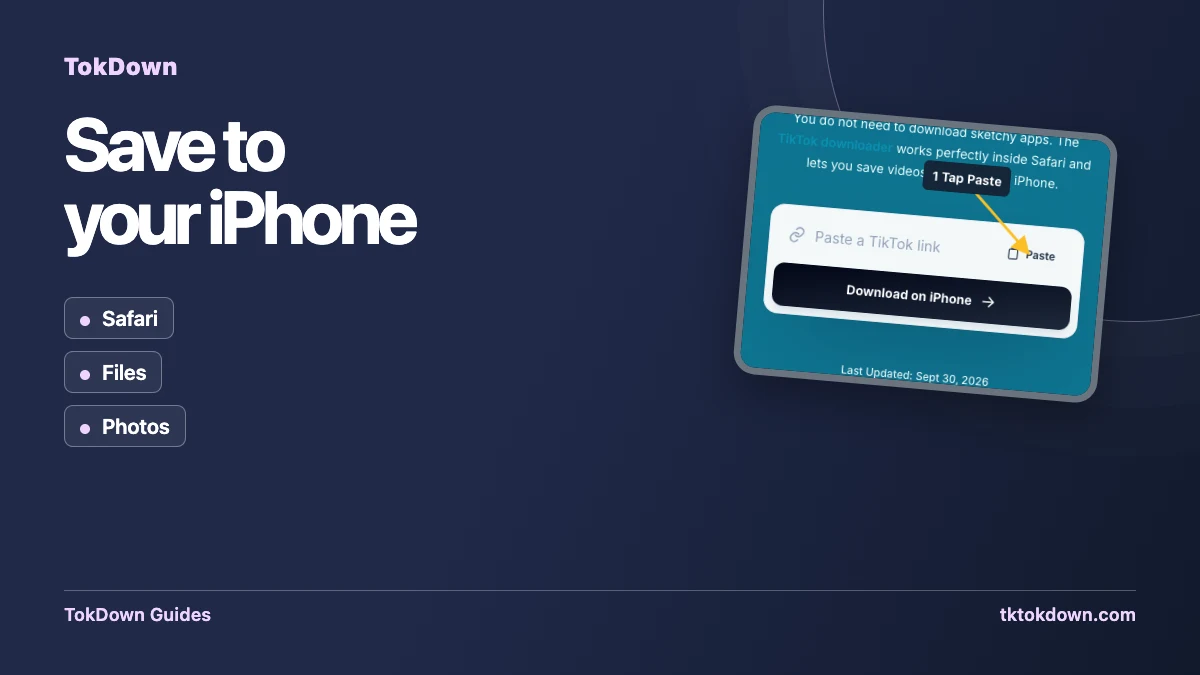
Apple does not let websites write straight into your Photos library, so saving a TikTok video on iPhone takes one extra step compared with a computer. It is still quick once you know where the file lands.
What works on iPhone and iPad
Use Safari. Since iOS 13 Safari has a built-in download manager, which is what makes saving files from a website possible. Other browsers on iPhone also use Apple's engine, but Safari gives the most predictable behaviour.
Step by step
- In the TikTok app tap Share, then Copy link.
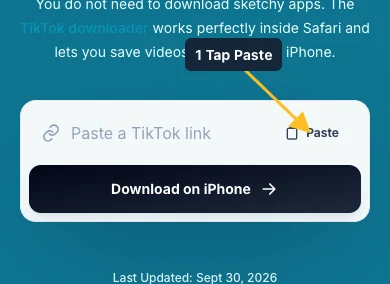
- Open TokDown in Safari and paste the link into the box.
- Tap Download, then choose the HD MP4.
- Safari asks whether to download the file. Tap Download. A small download arrow appears in the address bar.
Where is my video?
Tap the download arrow in Safari and choose the file, or open the Files app and look in Downloads. From there, tap the file, press the Share button and choose Save Video. The clip is now in your Photos app.
Audio only
If you choose the audio option you get an M4A (AAC) file. M4A plays natively on iPhone and works in the Music, Files and most editing apps.
If it does not work
Check that the video is public and the link is complete.
Make sure you have free storage on the phone.
Turn off a content blocker for the page if the download button does not respond.
Try again in a minute. Temporary busy messages clear quickly.
Keep TikTok and Safari easy to switch between
Start from the individual video in the TikTok app and use its Share menu to copy the post link. Then open Safari on your iPhone and go to the TokDown iPhone tool. Keeping the two apps open lets you return to the same post if the preview is unfamiliar. If you opened the post from a message, check which account posted it before copying. A repost or a similar caption can make adjacent items look almost identical.
Tap the tool’s Paste button. If iOS asks whether Safari or the site can paste, decide whether to permit the action. You can also tap the link field and use the keyboard or editing menu to paste manually. The URL should appear in the field before you tap Download. If the field remains empty, return to TikTok and copy the link again. That check saves you from submitting the previous item still stored on the clipboard.
Find the downloaded file before opening Photos
When a video choice is available, choose the MP4 that suits your needs and watch for Safari’s download indicator or confirmation prompt. The transfer can finish in the background, but wait for it before assuming the file is ready. Open the browser’s download list and tap the entry. You can also use the Files app and look for Downloads under the location set in Safari. It can be in iCloud Drive or on the device, depending on your settings.
If a downloaded file opens inside Files, that already confirms it is available for offline playback. If you want it alongside your camera clips, open the file’s share options and look for Save Video. The option depends on what iOS recognizes and on the file type. An M4A belongs in Files or an audio app that supports it. If Photos is the destination, confirm you selected a video result with an MP4 extension in the first place.
Use a quick check for storage and playback problems
When a transfer repeatedly stalls, check how much space your iPhone has left and whether the download location is available. Even if you intend to keep the clip in iCloud, the device still needs room to complete the transfer. If you are using mobile data and the file is large, try a stable connection. Choose the standard video option when offered if you only need to view the clip on the phone and want a smaller file.
If a clip plays in the browser but you cannot find it afterward, return to the download list and check whether it says completed. A preview that plays before saving is separate from the downloaded file. If Safari opened the media in a new tab, use the saving controls available there. Verify the actual file by opening it from Files and skipping to the end. A file that stops early may need a fresh download.
An example for archiving your own video
Suppose you want to save two clips from your own TikTok account before you start editing a recap. Copy the first individual post, paste it into TokDown, and compare the result against the caption and account in TikTok. Save the video and rename it in Files by topic or shooting date. Then clear the first URL, copy the second post, and repeat. That routine makes it easier to tell which file belongs to which source.
When editing in an iPhone app, import from Files if that option is available. If the editor only shows the photo library, save the MP4 to Photos first and confirm it appears there. Keep the original camera export if you have it, especially for footage you want to re-edit. The downloadable copy may be compressed, and any text already baked into the video will travel with it. Save the source post link if you need to revisit the published version.
Quick answers
Do I need an app?
No. TokDown runs in the browser, so there is nothing to install.
Will it work on iPad?
Yes, the steps are the same in Safari on iPad.