TikTok Photo Slideshow Downloader
Open a public TikTok photo post and paste its full address, including /photo/. Choose the slide you want, then select Save file.
- No account
- No app
- Free
- Public posts only
What You Can Download
- Preview individual slides.
- Save images one at a time.
What it can't do
- Use the full address for an accessible public photo post.
Download in Three Steps
-
01
Open a photo post
Copy the full public post address including /photo/.
-
02
Find the slides
Paste the address and select Find photos.
-
03
Save an image
Choose a numbered slide and use Save file.
How to Download Photos From a TikTok Slideshow
Open the post in TikTok and swipe once to make sure it’s the photo slideshow you mean to save. Tap Share, then Copy link. TokDown needs the full address of the post, with /photo/ in the path. If TikTok gives you a short share link, open it in a browser first. Once you see the post, copy the address from the browser bar. Paste that address above and tap Find photos.

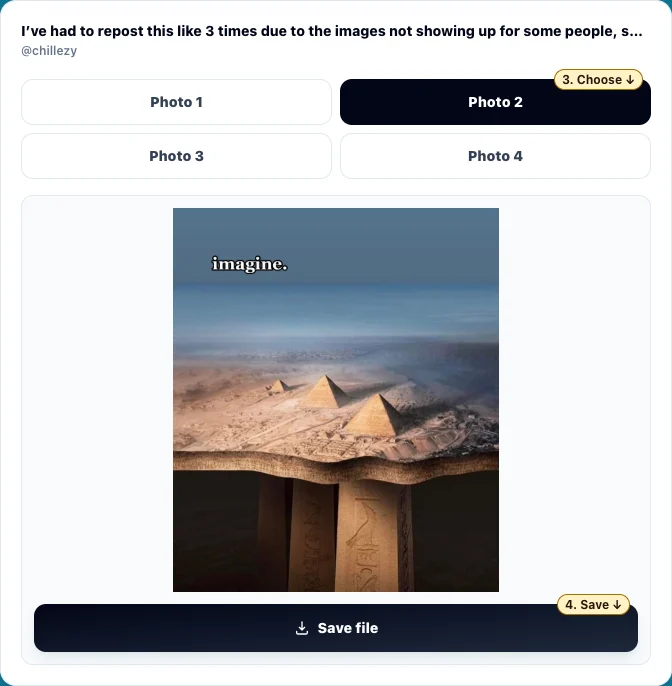
When the results load, each option is numbered. Tap a photo number to bring that slide into the preview. Check the picture, then tap Save file. If you want another slide from the same post, choose its number and use Save file again. You can stay on the same results screen while you save the slides you need. Downloading one slide leaves the rest of the slideshow untouched.
If you’re copying a link from a message, open the shared post first. A message can include a caption or more than one link, and copying the entire message can put extra text in the box. Once you have the full post address, paste it on its own. Leave the number at the end of the URL intact. That number tells TokDown which post to look up, even when the same creator has published several slideshows with similar captions.
Is It a Photo Post or a Video?
A photo post has separate images you can swipe through. A video can look like a slideshow too, especially if the creator arranged still pictures and added music in an editor. That kind of post is one video file. If the address contains /video/ and the post plays as a single clip, use the MP4 downloader to save the clip. Saving the clip won’t give you the original pictures the creator used to make it.
The difference matters when you want one specific frame. With a photo post, you can choose the slide directly. With a video, your options are the video and any audio files that the result offers. If you’re working on your own project and need individual images from a video montage, look in the folder or editing project where you assembled it. Those originals may have more detail than a still grabbed from the finished video.
A cover image is another thing to watch for. The picture you see on the creator’s profile may be a cover or a cropped thumbnail. Open the actual post and swipe to the image you need before you copy its link. If the first picture in TokDown doesn’t match the cover you remember, look at the remaining slides. Use the preview to tell one image from another.
Pick the Right Slide Before Saving
When slides look alike, use something easy to check, such as the text at the top, the color of a chart, or the position of an object in the photo. If TikTok shows a slide count, make a note of the number as well. Scroll down to TokDown’s preview after picking a photo. A highlighted number tells you which option is active. The preview tells you whether it’s the image you wanted.
For example, say your own post has seven slides and you need the third and sixth for a presentation. Pick Photo 3, check the picture and save it. Then choose Photo 6 and repeat. Open the two downloaded files before you close the post. If they look similar as small thumbnails, use the full preview or open them one at a time. It’s easier to get the right pair while the original post is still open.
If you’re pulling several charts or recipe cards from an authorized post, keep their order in the filenames. Use two digits for the slide number if there are ten or more images. That makes 02 come before 10 when you sort by name. For a set you’ll share with a teammate, keep the original post link in a note alongside the files. The link helps them confirm which slide came from which post.
Find the Photo on iPhone, Android or Desktop
On iPhone or iPad, open the downloads list in Safari after tapping Save file. If the image is there, tap it to open it. You can also find the completed file in the Downloads folder in Files. The folder may be under iCloud Drive or On My iPhone depending on your Safari settings. If you want the image in Photos, open it in Files and look for a save option in the share menu. The exact label can vary with the file and iOS version.
On Android, open Chrome’s Downloads list or the Downloads folder in your file manager. A gallery app may take a moment to show an image, and some gallery apps only display folders they scan. If the browser says the download is complete, open the file from Downloads first. You can move it into a different folder later if you want it next to your other pictures.
On a computer, open the browser’s Downloads list. Use the option that shows the file in its folder if you need to move or rename it. Your browser may ask where to save each picture. If you’re saving a set, create the destination folder first so you can put all the files in one place. Check that you can open the saved image in your normal photo viewer before deleting any older copy.
What Quality Can You Expect From a Saved Photo?
TokDown saves the image available from the public post. The upload might have been resized or compressed before you ever saw it. An image can look sharp in the narrow TikTok preview and look softer when you stretch it across a desktop screen or put it into a large slide deck. Open the saved file at the size you intend to use and check the details that matter, especially small writing, fine lines and faces.
If you need exact dimensions, use your phone’s file details or a desktop image viewer to check the width and height. That’s more useful than guessing from the file size alone. A photo with a flat background can take up less space than one full of texture, even if both have the same dimensions. If your project has a size requirement, check the saved image before committing to it.
Anything added to the picture before it was uploaded can still be there in the file. That includes text, labels and a creator’s logo. For your own post, check whether you still have the original in your photo library, design app or cloud backup. Use the original if you need a clean source or you plan to make more edits. A downloaded slide is useful when you want the version that was actually posted.
-
1. Open the post
Copy the full address containing /photo/.
-
2. Choose a slide
Tap its photo number and check the preview.
-
3. Find the image
Use Save file, then open your browser’s Downloads list.
Why Isn’t TokDown Finding My TikTok Photos?
Start with the link. If the address is still a short redirect, open it and copy the full post address from the browser. Check for /photo/ in the URL, then confirm that you can still swipe through the post. If the browser opens a profile or returns to the TikTok home feed, go back to the individual post and copy its link again. A profile URL can’t tell the tool which slideshow to use.
If the link looks right but you see no files, try opening the original post while signed out. A photo post that opens in the TikTok app for your account can be unavailable to other visitors. If it’s private, deleted, or unavailable in your region, try the original images if you own the post. If someone else made it, ask them for the images you have permission to use. A Story can expire, and this photo tool accepts public slideshow posts.
When a preview appears but Save file doesn’t finish, check your browser’s Downloads list. Look for a save prompt, paused transfer or storage warning. If you left the results open for a while, paste the post link again to get fresh options. If you’re using a browser inside a chat app and can’t find any download controls, open TokDown in Safari, Chrome or your usual browser and try again there.
Save One Slide or Keep a Whole Set
If you only need one slide, save that picture and check it before moving on. That’s useful when you’re revisiting your own post for a diagram, a title card or an image you want to reuse in a project. If you want to keep every slide, save them in order and check the download list against the slide numbers. With many similar pictures on the screen, it’s easy to accidentally save one twice.
For a backup, make a folder named for the post or project and keep the original sequence. Add a note with the link and the date you saved the files. If you need the caption too, keep it separately. An image download gives you the picture, while a source note keeps the context you’ll need later. For a team handoff, include which slides you selected and what you intend to use them for.
If you need the slideshow to play as a video in your editor, import the saved photos and arrange them on the timeline yourself. You can set how long each photo appears and use an audio track you’re allowed to include. If you only need the images, keep them as separate files. That’s easier to sort, crop or replace than moving everything into one video first.
Use Photos You Have Permission to Save
A public post lets you see the pictures. Before you share or edit them, check who made them and what permission you have to use them. A slideshow can contain photos from several people. Ask for the originals if a client or collaborator wants you to work with those images. That helps you get a better source file and makes it easier to check where each image came from.
If you’re saving a post for a work project, keep the creator name and source link with the files, along with any permission you received. If the plan changes from an internal reference to a public post, check that your permission covers the new use. If all you need is a way to revisit the source, keeping the link may be enough.
Try the tool with a public photo post you own or are allowed to save. Start with one slide, check the result, then save any others you need. You can reach the link box again from the button below without losing your place on this page.
Before putting the files into a document or presentation, open each slide and check that it’s the version you meant to save. A saved image can have a similar name to an older download or sit next to a screenshot of the same post. Check the picture itself and keep the copy with the detail you need. If you plan to crop it, keep the full-size download too so you can change the crop later without downloading the post again.
Back to the download formOther TikTok Download Tools
Photos questions
Can I use the short link TikTok gives me?
Open the short link in your browser first. Copy the full post address once the slideshow opens, and check that it contains /photo/. Paste that address into TokDown.
Can I save only one slide?
Yes. Pick the numbered image in the result and check the preview before using Save file. You can select another image from the same result when you need it.
Does this turn a photo post into an MP4?
The result contains separate images. If you need a video, import the saved slides into your editor and arrange them on a timeline. Use the MP4 downloader when the original TikTok post is already one video.
Why did my slideshow link return no photos?
Check that the full address opens the individual photo post, rather than a profile or a video. Try opening the post while signed out. Private, deleted or restricted posts can be unavailable to TokDown.
Where are the pictures on my phone?
Check Safari Downloads or Files on an iPhone. On Android, look in the browser’s Downloads list or the file manager. A gallery app may show the picture later, depending on where it was saved.
Is the downloaded photo the same size as the original upload?
TokDown saves the image available from the post. TikTok may have resized or compressed it. Check the saved image’s dimensions in a photo viewer if you need a particular width or height.
Why does the picture still show text or a logo?
Text, stickers and logos can be part of the image itself. Open the chosen slide to see exactly what is in the saved file. For a clean edit of your own work, use your original image if you still have it.