
When a download fails it is almost never random. There are only a handful of reasons, and most of them you can check in under a minute. Here is the checklist we use ourselves.
1. The video is private or its account is private
A web tool can only see what a logged-out visitor sees. If the creator limits the video to followers or friends, it cannot be fetched. Ask the creator to make it public, or use the in-app save option on your own account.
2. The video was deleted or removed
Creators delete posts, and TikTok removes posts for policy or copyright reasons. A deleted post has no file left to download.
3. It is blocked in a region
Some videos are only available in certain countries. TikTok decides this, we cannot override it.
4. The link is incomplete
Copy the link from the Share menu. A link cut by a chat app or a screenshot of a link will not work. Short links (vm.tiktok.com, vt.tiktok.com) are fine, as are the full tiktok.com links.
5. The link is not from TikTok
For safety, TokDown only accepts tiktok.com addresses. Links from other sites, or links that merely contain the word tiktok somewhere in the address, are refused with a clear message.
6. A busy moment
When many people download at once, requests wait for a free slot. If you see a message asking you to try again in a few seconds, do that. It clears quickly.
7. TikTok changed something
TikTok changes how videos are served from time to time. When that happens extractors need updating. If a public video still fails after the checks above, tell us through the contact page with the link and we will look at it.
Identify the stage where the error appears
Start with what you can see in TokDown. A message beside the form immediately after you submit often points to a link or input problem. A delay followed by a lookup message means the request got further. A preview and format choices tell you that the source lookup succeeded, so if the file still does not arrive, focus on the transfer. Write down the exact message before refreshing because a fresh form normally clears it.
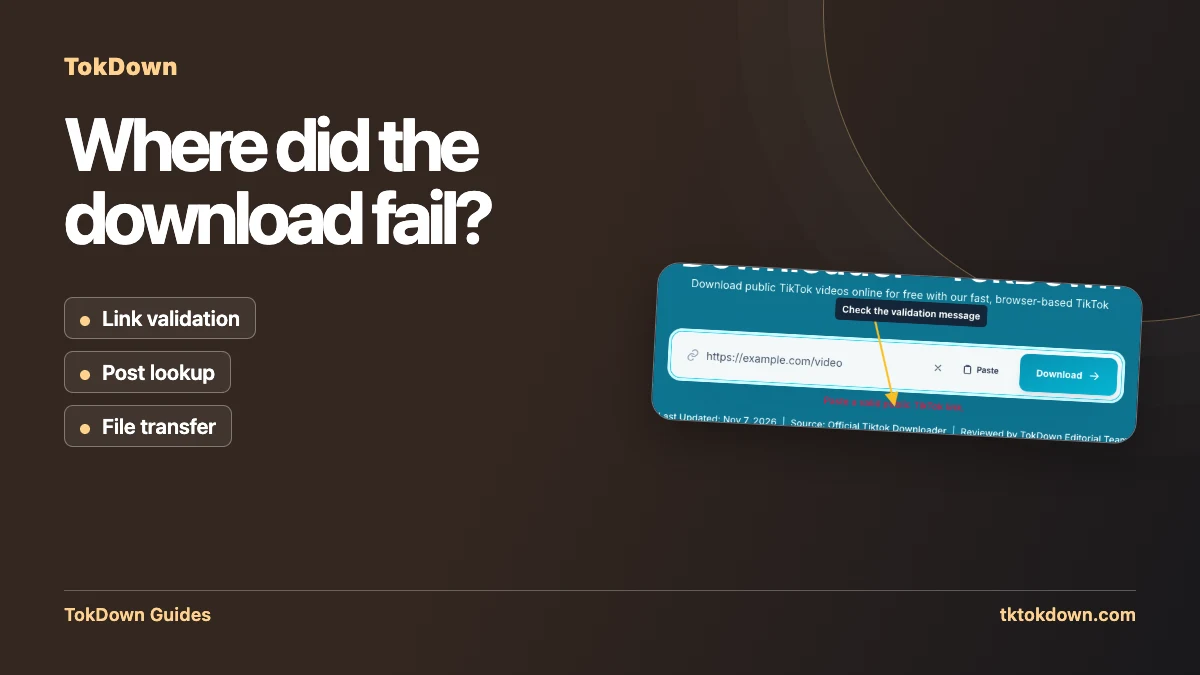
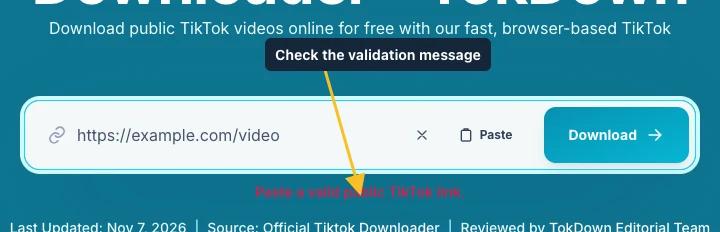
A good first check is to paste one freshly copied TikTok link. An ordinary web page or a message containing its own introduction can be rejected by the form. The screenshot shows the validation state produced by a real submission of a non-TikTok address. If that is what you see, copy the post through TikTok’s Share menu and check that only the URL is in the box. Removing the unwanted text is more useful than clicking Download repeatedly.
Test the source without your TikTok session
Open the copied link in a browser tab where you are signed out of TikTok. Look for a playable public video. A link could open for you in the TikTok app because your account follows the creator, but the public page may show something different. Look for a profile page, photo post, Story, unavailable page or a redirect that never reaches the individual video. In those cases, the copied link and the expected source type are the first things to resolve.
If you recently shared a post you made, confirm it has actually published and that its visibility is what you intend. If you do not want it to be public, work from your original recording. If someone sent you a shortened address, ask them to send a fresh share link for the post. A short address that redirects to the playable clip can work; one that was truncated in a message will never reach the post.

Treat missing formats differently from failed lookups
A result may offer video but not audio, or standard quality but not HD. That is different from the form reaching no result. Read the available labels before assuming the lookup needs to be repeated. Check playback on the original if you expected an audio option and the video seems quiet. A video without accessible sound, or a version without a retrievable clean source, cannot acquire that option from the browser that happens to request it.
If the buttons appear but a file URL no longer opens, note how long the result tab has been idle. Media links can expire. Request a fresh result, choose one format, and watch the browser’s download indicator. A transfer that starts but pauses may need a stable connection or free storage. A smaller format can be an appropriate check when the download starts but does not complete on the current connection.
Run one controlled comparison before reporting a problem
Use a different public video that you own or have permission to save. Keep the same device and browser so the source link is the only thing you changed. If it works, the first post or its available formats deserve closer inspection. If both fail at the same step, try once in your regular browser if you started inside a chat app. Capture the message, device, browser and step where it failed.
When you contact support, include the public post link if you can share it. State whether you saw a preview, which option you selected, and whether the browser started a transfer. Keep account details, private messages and clipboard history out of the screenshot. If you are sending an image, crop it around the tool and error. That provides enough context to reproduce the relevant step without showing anything unrelated from your device.
Quick answers
Why does one video work and another not?
Each post has its own privacy setting, region rules and available files.
Should I try a VPN?
It will not help with private or deleted posts. For a region block it may, but the download itself still happens on our side.