
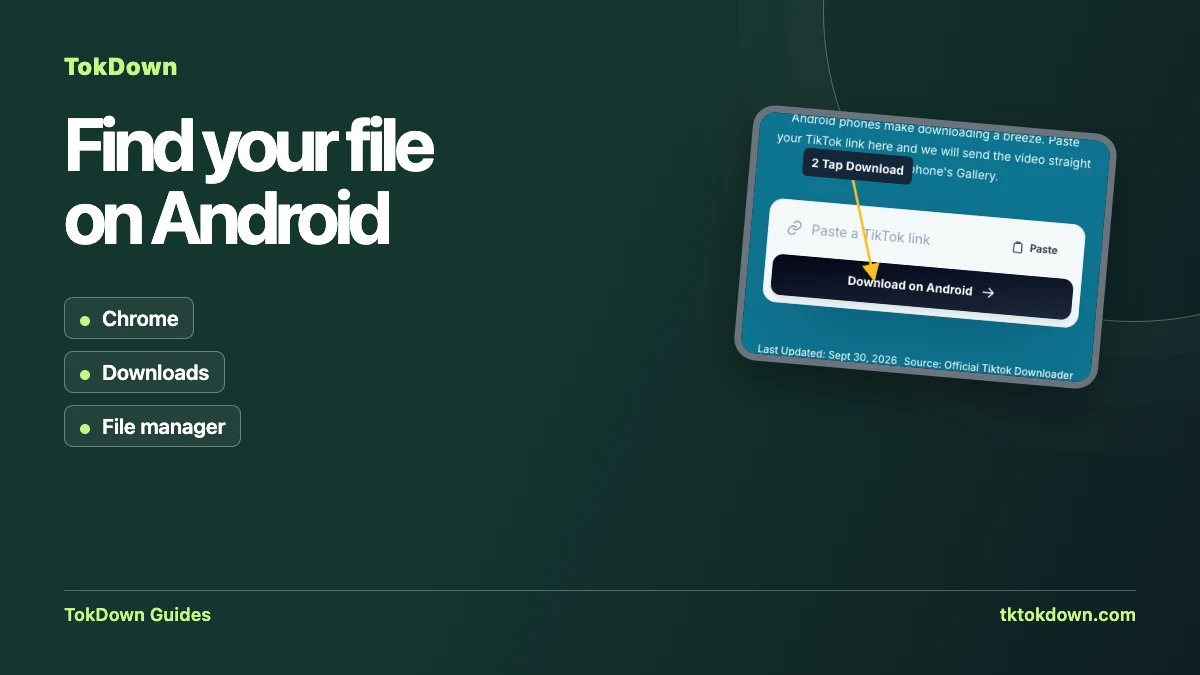
Android makes this easier than most platforms because the browser can save files directly to the phone. Here is the full process, plus a few tricks for finding the file afterwards.
What you need
An Android phone with Chrome, Samsung Internet, Firefox or any other current browser, and a link to a public TikTok video. No app or account is required.
Steps
- Open the video in TikTok, tap Share and choose Copy link.
- Open TokDown in your browser and paste the link.
- Press Download and pick HD MP4, standard MP4 or the audio-only M4A.
- Confirm the download if your browser asks. A notification shows when it finishes.
Finding the file
Tap the download notification, or open the Files app and look in Downloads. MP4 videos normally appear in your Gallery or Google Photos within a minute. If they do not, open the file once from Files and it will be indexed.
Saving space
The HD MP4 is the largest file. If you only need to share a clip in a chat app, the standard MP4 is usually enough and uploads faster on mobile data.
Common problems
"Couldn't extract that" means the video is private, deleted or restricted in your region.
A slow start is normal at busy times, the request waits briefly for a free slot.
If the file does not play, update your video player or open it in the browser to check it first.
Move the right URL from TikTok into your browser
In TikTok, open the individual video and copy its link through Share. If the link came from another app, open it once to confirm it points to the clip you expect. Android lets you copy snippets from many places, and a chat message sometimes contains a full sentence or multiple links. Use the link field to check that you pasted a single address. If an old link is still there, use the clear control before pasting again.
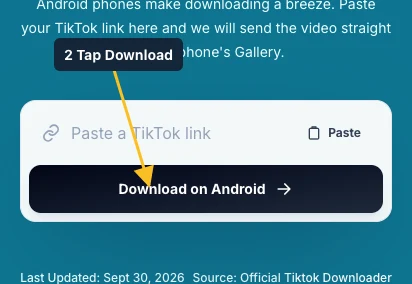
Open TokDown’s Android tool in your regular mobile browser. If an in-app browser makes the save step hard to follow, open the tool in Chrome or another browser with its own Downloads screen. The form works through the browser. There is no separate APK required for this workflow, and the input asks for a public TikTok link. The annotated screenshot uses TokDown’s actual Android-width layout so you can locate the submit control even when it wraps onto a separate row.
Select a format with your destination in mind
When the lookup returns options, decide where you want the file to go. MP4 is the choice to start with for a video you want to watch or move into an editor. A standard video option can be useful when available if you are on mobile data or only need a quick reference copy. If you want the soundtrack alone, select the audio option and check the extension before moving the file into a music or editing app.
After selecting the option, check the browser’s download notification. On Android, the notification can show a transfer continuing after you switch apps. Leaving a page open while the transfer starts makes it easier to see prompts, especially when you use a browser with strict download settings. Open the completed file once. Test the audio and skip to a point later in the clip to confirm that the transferred file is usable.
Find the file using Downloads or the system file manager
If the browser says the file is ready but your Gallery does not show it, open the browser menu and choose Downloads. Some gallery apps only show folders they scan for media. The Android file manager provides a second way to locate it. Open Files or your device’s file app, select Downloads, and sort by most recent if you have several files with similar names. Menus and folder labels vary by device maker and browser.
Open the file from Downloads first. If that works, you know the transfer completed and can choose how to organize it. To put it in a different folder, use the file manager’s Move or Copy action. For your own archives, use a filename tied to the post or project, and keep the original link separately if you need the caption or original account later. Check storage before saving multiple versions of the same clip.
Diagnose an issue without changing apps repeatedly
When pasting fails, check the clipboard by trying a manual paste in the TokDown field. If you see a validation message, copy a fresh link from the specific post. When the link is accepted but no file options appear, check whether the post plays in a browser without signing in. A photo carousel, Story, unavailable post, or non-video link is a different case from a temporary connection problem.
When the tool does show an option but the browser does not finish saving, check the download list, the network and remaining storage. A browser that offers a file-location prompt can leave a download waiting for you to confirm it. If the result tab has been open for a while, do a fresh lookup before trying the file link again. A direct comparison with a second public video you own can help distinguish a problem with one post from a broader connection problem.
Quick answers
Does TokDown work on Samsung, Xiaomi and other brands?
Yes. It works in the browser, so the brand of the phone does not matter.
Is the download safe?
You only receive a file from TikTok's own servers through your browser. We never ask for a password.